
Certificate for invoicing
Generate the ARCA production certificate for Riel.
Haven’t received your CSR file yet? Contact us to arrange setup .
Use the CSR sent by the Riel administrator to obtain the certificate, authorize Electronic Invoicing, and prepare the point of sale. When finished, return the CRT to the administrator.
Complete this process on a computer. You will upload the CSR and download the CRT.
Before you start
What you need.
- The production CSR file sent by the Riel administrator.
- The issuer CUIT specified in the administrator's message.
- Your own fiscal key and permission to administer that CUIT.
- The issuer's tax status and address for choosing the point of sale.
- A computer from which you can download and return the CRT file.
Words you will see
What each name means.
- CSR
- The file Riel sent you and that you upload to ARCA.
- CRT
- The certificate you download from ARCA and return to the administrator.
- Alias
- A name you choose to recognize this certificate.
- Computador Fiscal
- The alias you select when authorizing Electronic Invoicing.
Step by step
From the CSR you received to the CRT you must return.
-
01
Confirm the CSR and CUIT you received
Check that the administrator's message includes a production CSR file and the CUIT that will issue. Use that file without modifying its contents, and do not generate another CSR.
-
02
Enable Digital Certificates if it is missing
Sign in to ARCA with your CUIT/CUIL and fiscal key. If “Administración de Certificados Digitales” is not visible, open “Administrador de Relaciones de Clave Fiscal”, choose “Adherir servicio”, and find ARCA → Servicios interactivos → Administración de Certificados Digitales. Confirm and sign in to ARCA again.
-
03
Upload the CSR and download the CRT
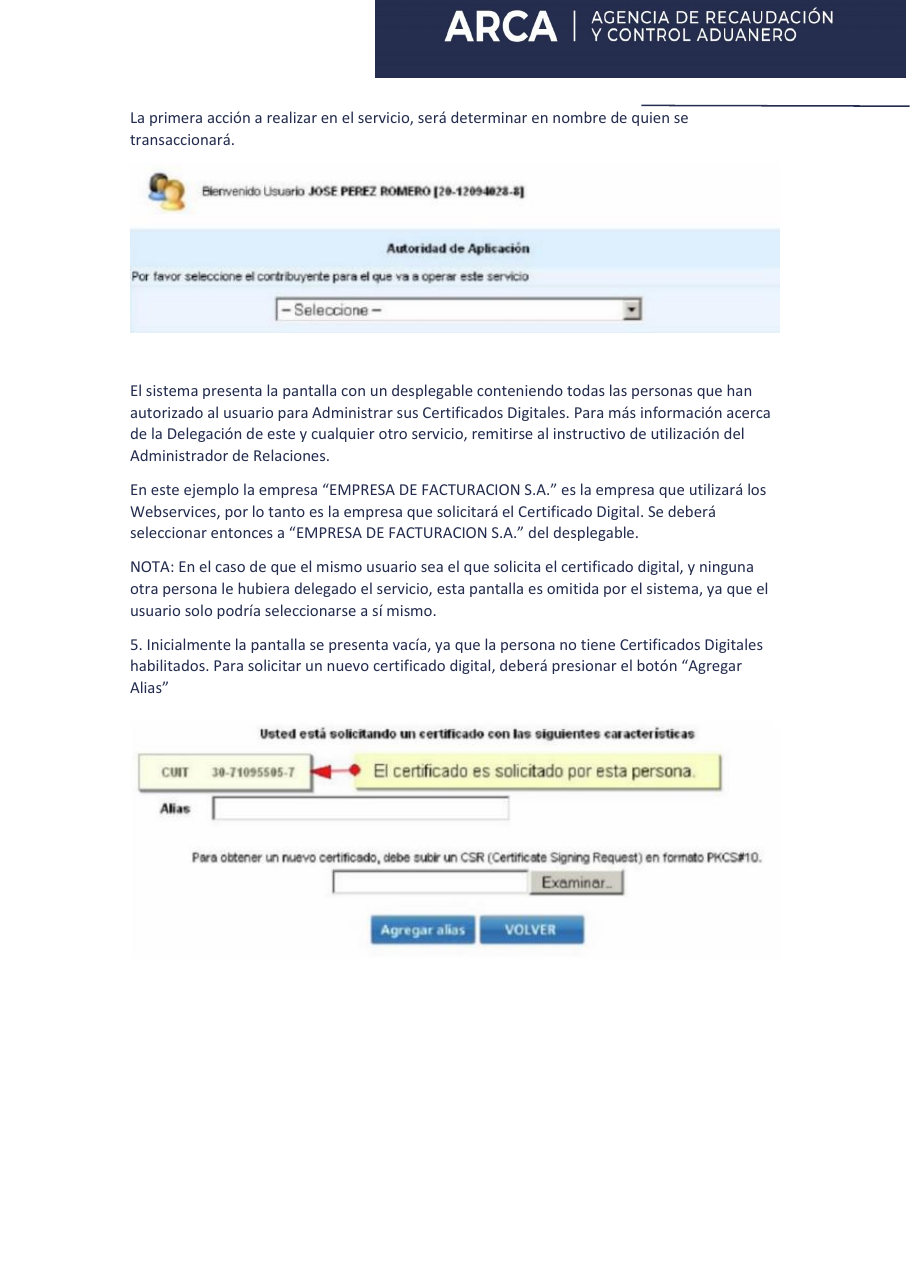
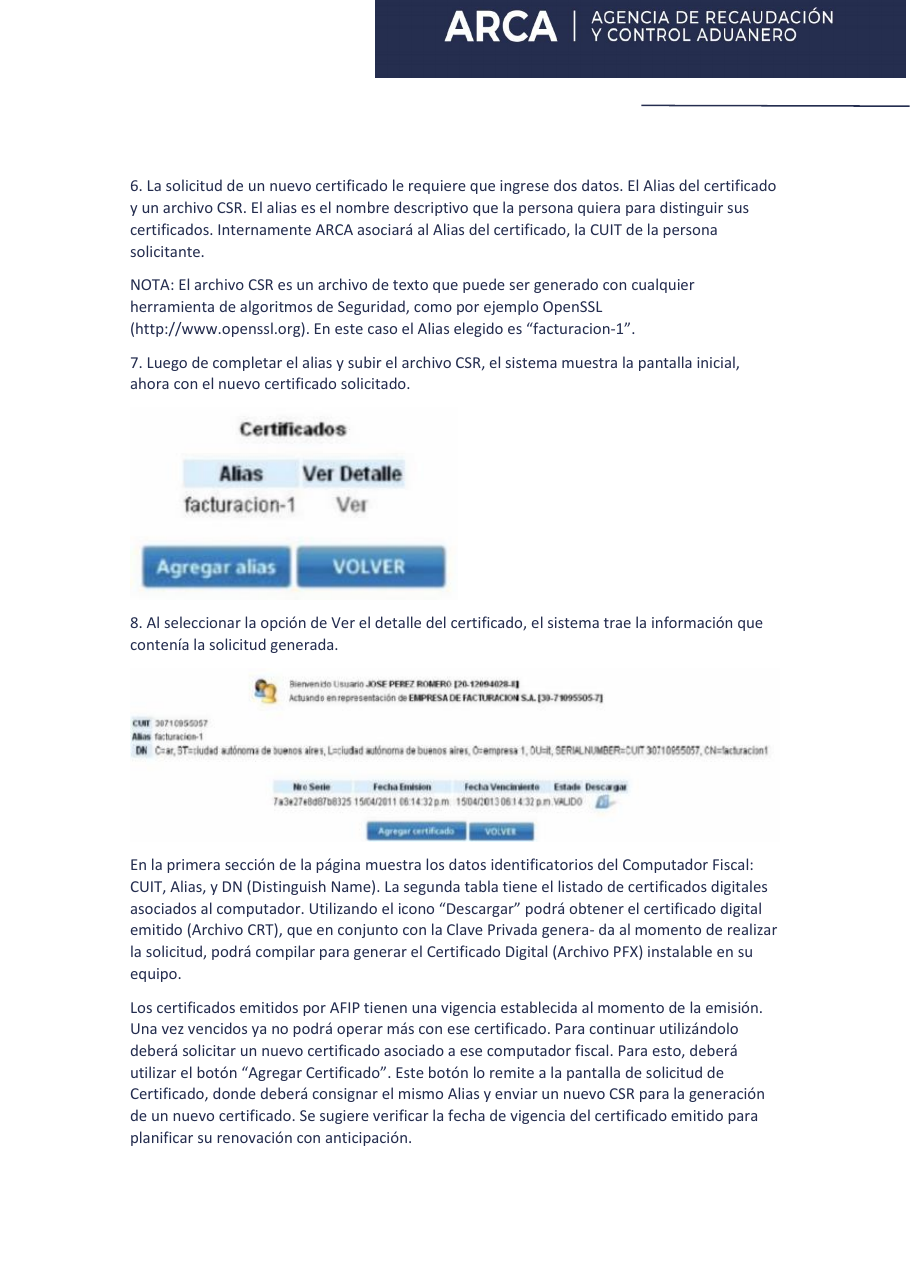
Open “Administración de Certificados Digitales”. If you administer more than one taxpayer, select exactly the CUIT specified by Riel. Choose “Agregar Alias”, use a clear name such as “riel-produccion”, and upload the CSR you received. Then open “Ver” and download the CRT.
-
04
Authorize Electronic Invoicing for that certificate
Return to “Administrador de Relaciones de Clave Fiscal” and choose “Nueva Relación”. Confirm the represented CUIT, find ARCA → Web Services → Facturación Electrónica and, as the representative or Computador Fiscal, select the alias you just created. Confirm the relationship.
-
05
Create or identify a Web Services point of sale
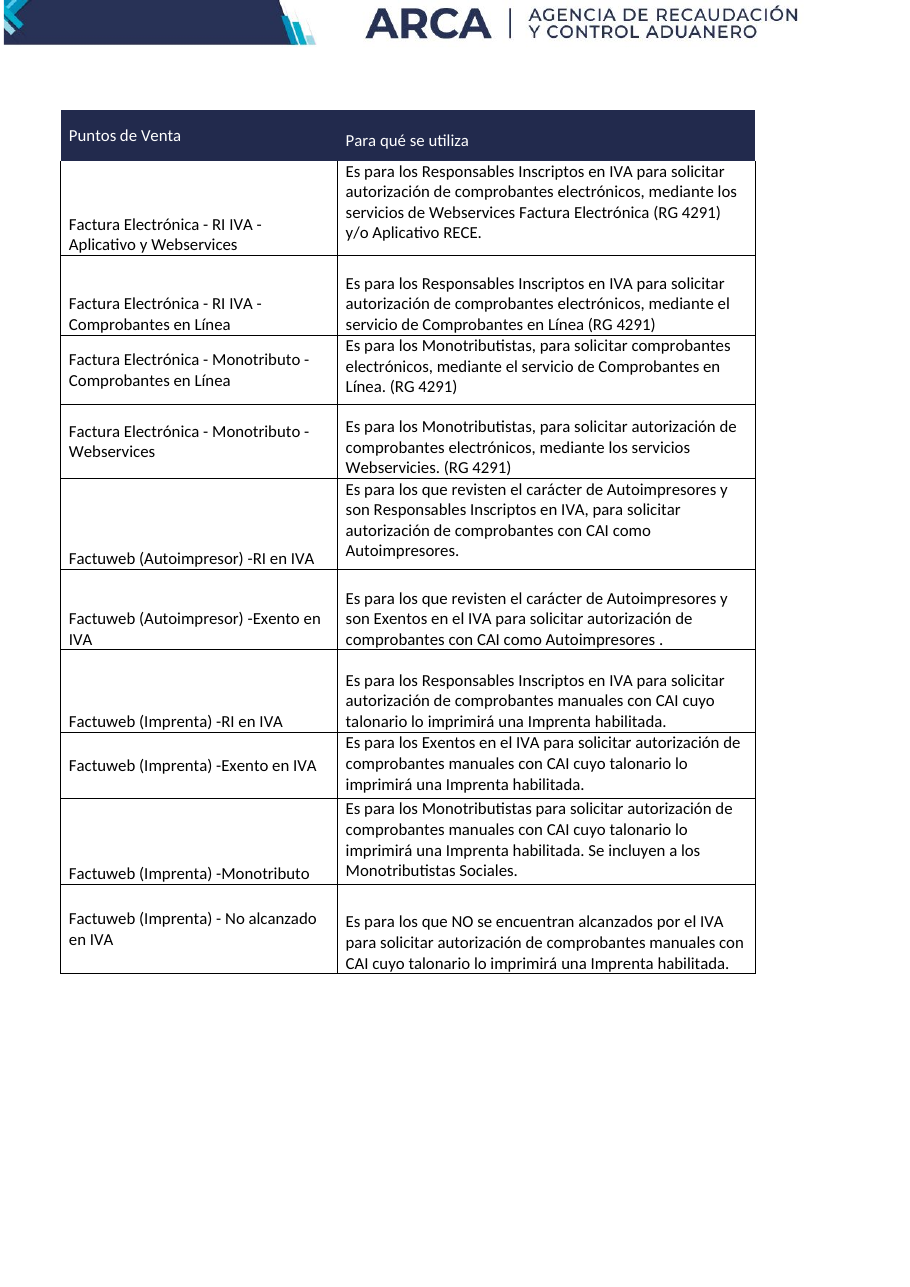
In “Administración de puntos de venta y domicilios”, select the issuer and open “A/B/M de puntos de venta”. You can use any existing point of sale enabled for Web Services; it does not need to be exclusive to Riel. Do not use one configured for “Comprobantes en Línea”. If you do not have a compatible one, add a new number and choose “Factura Electrónica - Monotributo - Web Services” for a monotributista, “RECE para aplicativo y Web Services” for a VAT-registered taxpayer, or “Facturación Electrónica - Exento en IVA - Web Services” for a VAT-exempt taxpayer. Note the selected number.
-
06
Return the result to the Riel administrator
Reply through the same channel where you received this guide. Attach the CRT, write the Web Services point-of-sale number, and add “Facturación Electrónica authorized”. No screenshot is required. Never send your fiscal-key password. The administrator will tell you when Riel is ready to issue.
Official visual reference
These are the screens you will see.
The images come from ARCA manuals. Select an image to view it at full size.
If something does not match
Check these points before requesting help.
- If the issuer CUIT is missing, ask whoever manages its fiscal relationships for access. This is usually the owner, legal representative, or accountant.
- If the alias is missing, recheck the represented CUIT and the certificate you created.
- If you already have a point of sale, check that its type says “Webservices”. You can use it in Riel.
- If you downloaded several CRT files, return the one inside the alias created from Riel's CSR.
Visual map
Production adds real fiscal authorization.
Security
Riel does not need your fiscal-key password.
Complete every step personally inside ARCA. Return only the CRT, point of sale, and authorization confirmation. The private key matching the CSR is already protected in Riel and must not be sent.