
Testing certificate
Generate the ARCA homologation certificate for Riel.
Haven’t received your CSR file yet? Contact us to arrange setup .
Use the testing CSR sent by the Riel administrator to create the certificate in WSASS, authorize Electronic Invoicing, and return the result. This process does not issue real fiscal documents.
Complete this process on a computer. You will copy text and save a file.
Before you start
What you need.
- The homologation CSR and CUIT sent by the Riel administrator.
- An individual person's fiscal key at security level 2 or higher.
- Sign in with an individual's fiscal key, not a company's or legal entity's credentials.
- A computer from which you can copy the CSR and return the certificate.
Words you will see
What each name means.
- CSR
- The text Riel sent you and that you paste into WSASS.
- PEM certificate
- The result you copy from WSASS and return to Riel.
- Alias
- A name you choose to recognize this certificate.
- wsfe
- The Electronic Invoicing service you must authorize.
Step by step
From the CSR you received to the certificate you must return.
-
01
Confirm the testing CSR and CUIT
Check that you received the homologation CSR and the CUIT to be represented. Use that complete CSR, including its headers, without generating another one or changing its contents.
-
02
Enable WSASS if it is missing
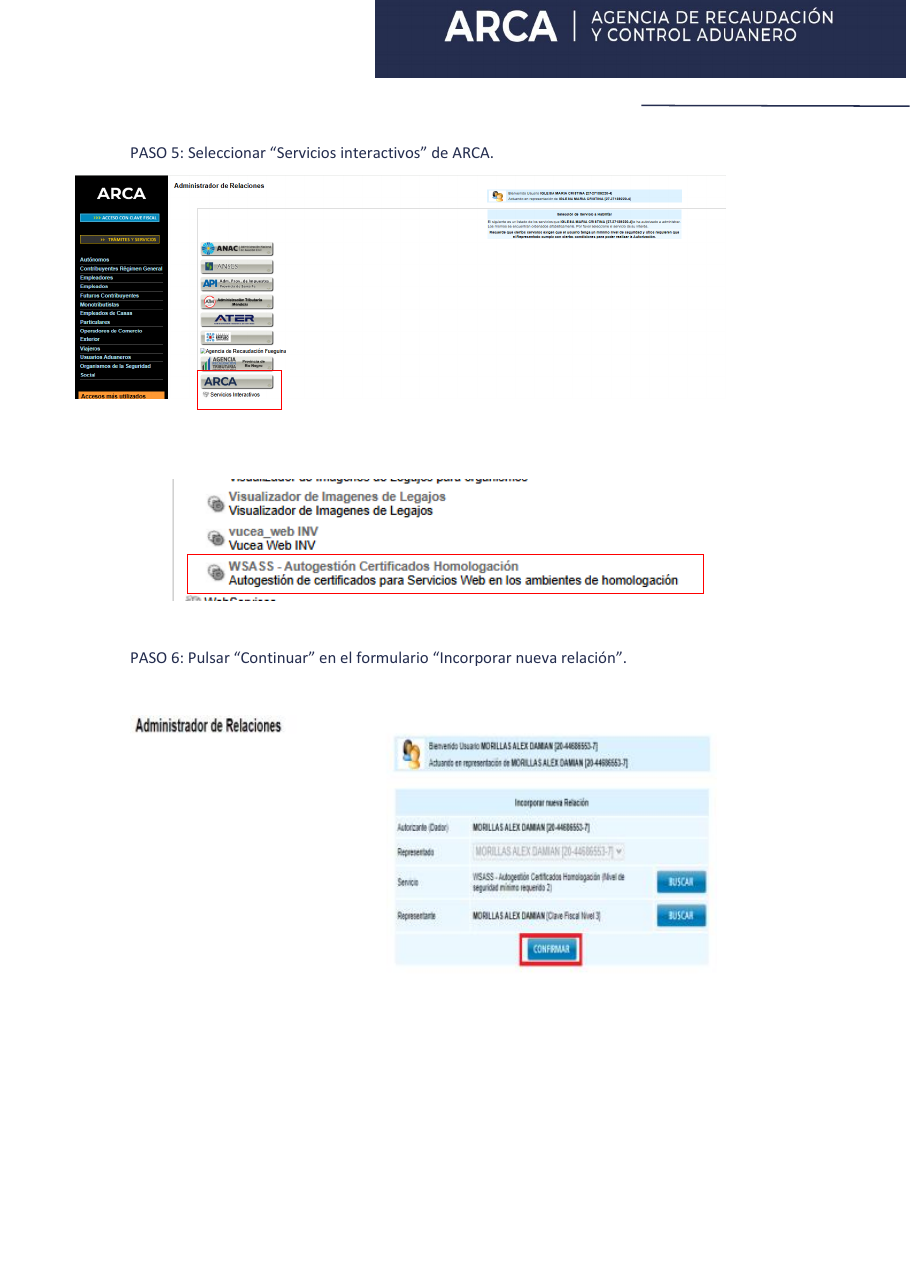
Sign in to ARCA with an individual person's fiscal key. If WSASS is not visible, open “Administrador de Relaciones de Clave Fiscal”, choose “Adherir servicio”, and find ARCA → Servicios interactivos → WSASS - Autogestión Certificados Homologación. Confirm, sign out, and sign in again.
-
03
Create the homologation certificate
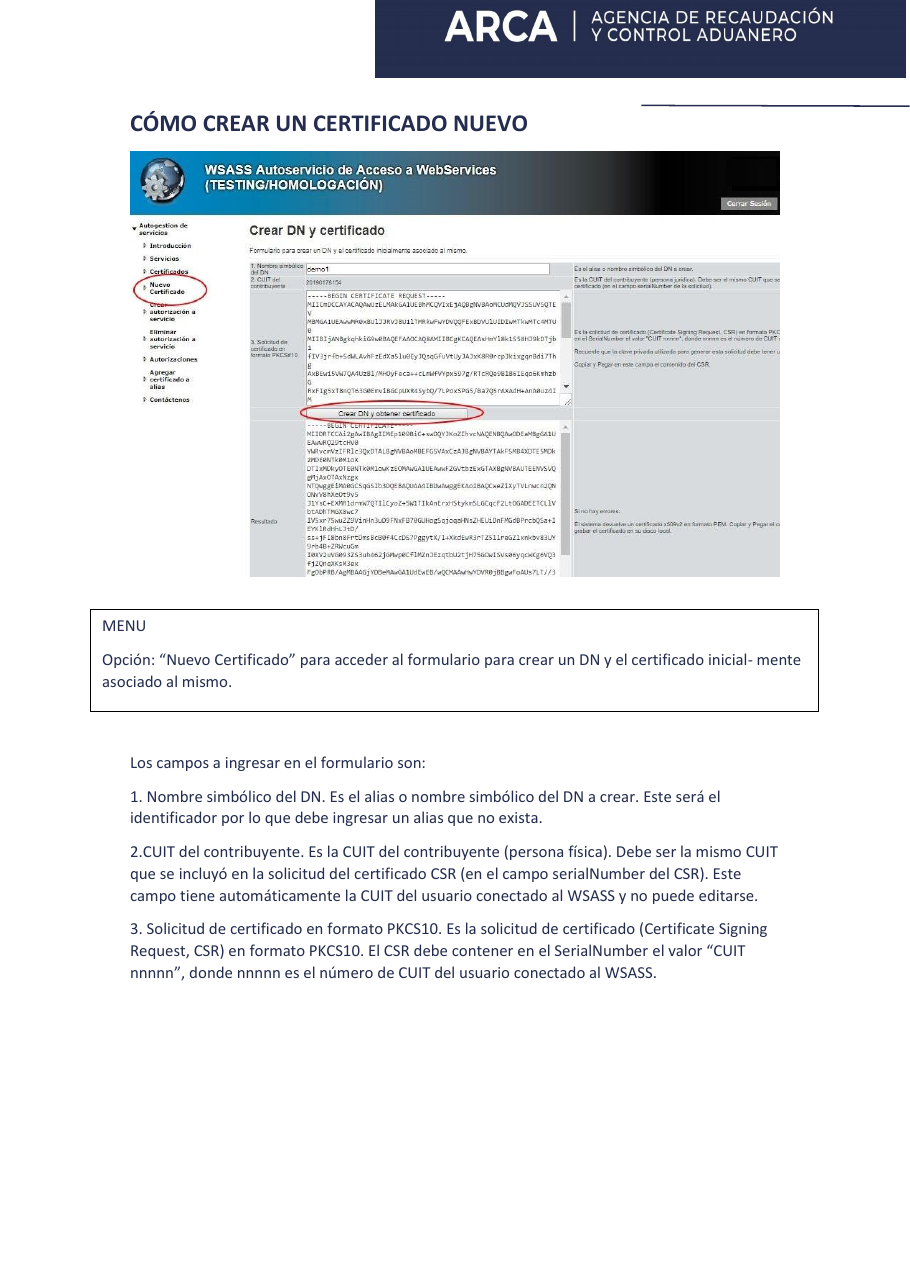
Open WSASS and choose “Nuevo Certificado”. Enter a clear symbolic name, such as “riel-homologacion”, and paste the complete CSR into “Solicitud del certificado en formato PKCS#10”. Choose “Crear DN y obtener certificado”. Under “Resultado”, copy all the text from “BEGIN CERTIFICATE” through “END CERTIFICATE”, paste it into a plain-text file, and save it with a .pem extension, for example “riel-homologacion.pem”.
-
04
Authorize Electronic Invoicing
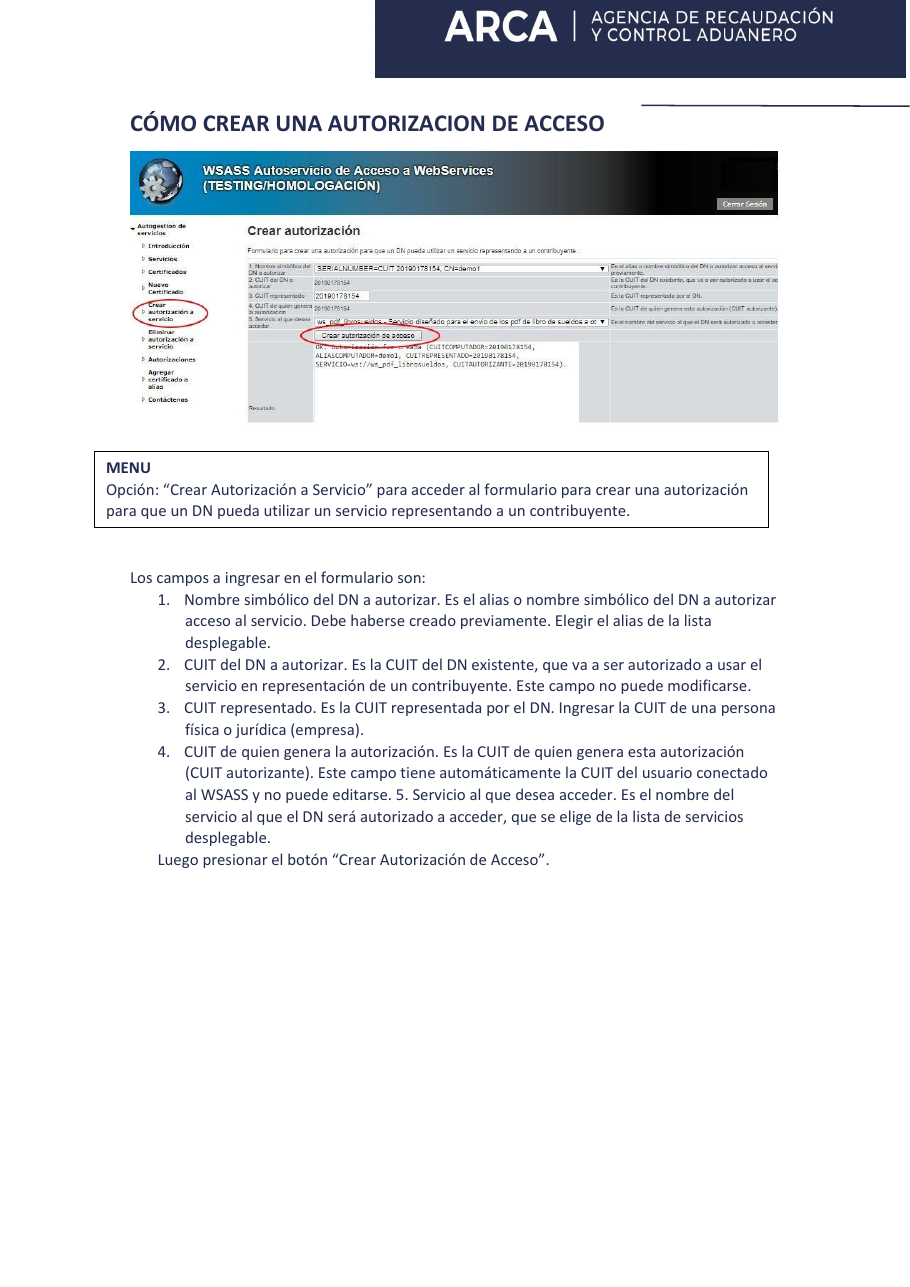
In WSASS, choose “Crear autorización a servicio”. Select the new certificate, enter the represented CUIT specified by Riel, and choose “wsfe - Facturación Electrónica”. Confirm with “Crear autorización de acceso”.
-
05
Return the certificate to the Riel administrator
Reply through the same channel where you received this guide. Attach the .pem file and add “wsfe - Facturación Electrónica authorized”. No screenshot is required. Never send your fiscal-key password. The administrator will tell you when testing is ready.
Official visual reference
These are the screens you will see.
The images come from ARCA manuals. Select an image to view it at full size.
If something does not match
Check these points before requesting help.
- If WSASS is missing, sign out and back in after adding the service.
- If ARCA rejects the CSR, copy its complete contents again without adding spaces.
- If “wsfe” is missing, confirm that you are creating an authorization inside WSASS.
- If you represented the wrong CUIT, delete the incorrect authorization and create it again.
Visual map
The certificate is prepared between Riel and ARCA.
Security
Riel does not need your fiscal-key password.
Complete every step personally inside ARCA and return only the certificate and authorization confirmation. This certificate is only for testing; production uses another CSR and certificate.
Official sources